Scroll to a specific row in a list in SwiftUI
 By Samim
In this tutorial, we will see how to scroll to a specific row in a list in SwiftUI.
In SwiftUI, scrolling to a particular row in a List can be achieved using the ScrollViewReader. This tutorial covers the following topics.
- Scroll to a Specific Row
- Customizing Scroll Alignment
- Adding Animation to Scrolling
Now, let’s explain all the topics mentioned above
Scroll to a Specific Row
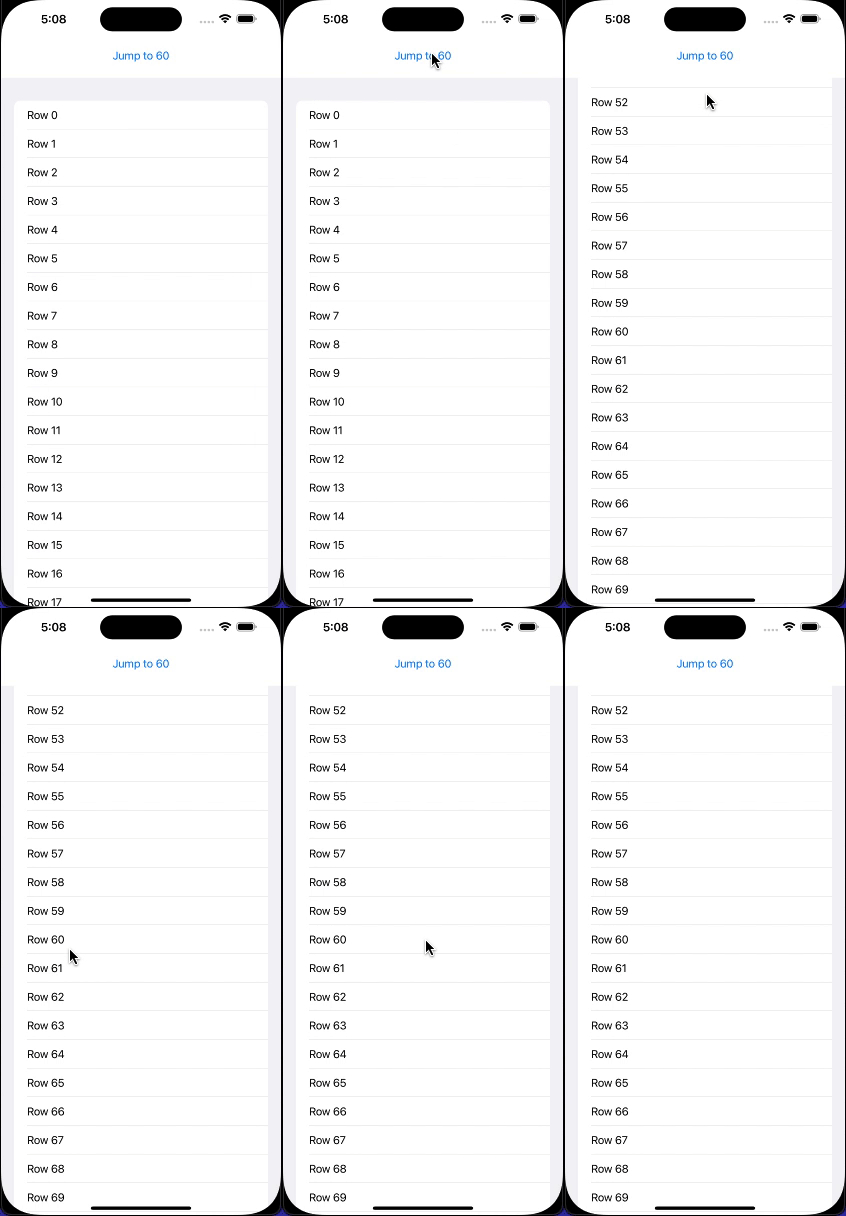
To scroll to a specific row, we need to wrap the List inside a ScrollViewReader. The ScrollViewReader provides a scrollTo() method that allows us to specify the ID of the row, we want to scroll to.
Example
import SwiftUI

struct ContentView: View {
    var body: some View {
        ScrollViewReader { proxy in
            VStack {
                // Button to jump to row 60
                Button("Jump to 60") {
                    // Scroll the list to show row 60
                    proxy.scrollTo(60)
                }
                .padding()

                // List containing rows from 0 to 100
                List(0...100, id: \.self) { i in
                    // Each row displays text with its number
                    Text("Row \(i)")
                        .id(i)
                }
            }
        }
    }
}
Output:

Customizing Scroll Alignment
We can customize the scroll alignment using the anchor parameter of the scrollTo() method. For example, to align the target row at the top, use the below code.
proxy.scrollTo(60, anchor: .top)
We can set the anchor parameter to .center to align the targeted row center of the viewport.
Have a look at the complete code below.
import SwiftUI

struct ContentView: View {
    var body: some View {
        ScrollViewReader { proxy in
            VStack {
                Button("Jump to 60") {
                    // To show the targetted row the top of the scroll view
                    proxy.scrollTo(60, anchor: .top)
                }
                .padding()

                List(0...100, id: \.self) { i in
                    Text("Row \(i)")
                        .id(i)
                }
            }
        }
    }
}
Output:

Adding Animation to Scrolling
To add animation to scrolling, we need to wrap the scroll operation in a withAnimation block. This provides a smoother transition and enhances the user experience.
Button("Jump to 70") {
    withAnimation(.easeInOut(duration: 1.0)) {
        proxy.scrollTo(60, anchor: .center)
    }
}
We can adjust the duration and easing options within the withAnimation block according to our preferences.
Here is the complete code below
import SwiftUI

struct ContentView: View {
    var body: some View {
        ScrollViewReader { proxy in
            VStack {
                Button("Jump to 60") {
                    withAnimation(.easeInOut(duration: 1.0)) {
                        proxy.scrollTo(60, anchor: .center)
                    }
                }

                .padding()

                List(0...100, id: \.self) { i in
                    Text("Row \(i)")
                        .id(i)
                }
            }
        }
    }
}
Output:
Leave a Reply