Create a GUI downloader App using Python
 By Sameer Saxena
In this Python tutorial, we will build a downloader App in Python (GUI based). This is a simple project using Tkinter.
File Downloader is an essential application that every operating system, Internet browsers, and even a customized standalone systems also consist of one. Having a downloader application helps us to manage the downloading process very easily and fastly with pretty much less chance of failure.
So In this tutorial, we are going to learn how to create a GUI application for downloading files using Python. Here we are going to use two libraries of Python Programming Language, these are:
- Tkinter – This library provides us the power of creating a seamless, nice looking and easy to use GUI applications and this is one of the best library present in Python Programming Language for GUI development.
- Requests – This module is used for processing our request based on URLs and depending upon the response is provided which consists of several parts like Header, Payload, etc. These responses can be analyzed and different types of information can be drawn from it, regarding the file we are fond of, like its Content, JSON, MIME type, Status Code, etc.
In this tutorial, I’m going to download an Image file from a random website, let’s see how the code begins, I would recommend you two first go through the Code it is pretty much easy to understand.
GUI Downloader Application using Tkinter in Python
Before getting started with the actual code first we need to install required libraries and modules
Installation:
$ sudo apt-get install python3-tk
$ pip3 install requests
Now, we go with our actual code
Source Code:
# Importing Required Module
from tkinter import *
import requests

# Defining  Downloder Class
class Downloader:
  # Defining Constructor
  def __init__(self,root):
    self.root = root
    # Title of the window
    self.root.title("Downloader Application")
    # Window Geometry
    self.root.geometry("600x100+200+200")
    # Declaring Url Variable
    self.url = StringVar()
    # Declaring Status Variable
    self.status = StringVar()
    # Initialising Status Variable
    self.status.set("--/--")

    # Creating Frame for downloader
    download_frame = Frame(self.root,background="grey",width=600,height=100).place(x=0,y=0)
    # Adding text widget lable for url
    url_lbl = Label(download_frame,text="URL",compound=LEFT,font=("times new roman",15,"bold"),bg="grey",fg="gold").grid(row=1,column=0,padx=10,pady=10)
    # Adding text widget for url
    url_txt = Entry(download_frame,bd=2,width=25,textvariable=self.url,relief=SUNKEN,font=("times new roman",15)).grid(row=1,column=1,padx=10,pady=10)
    # Adding the Download button
    dwn_btn = Button(download_frame,text="Download",command=self.download,width=10,font=("times new roman",14,"bold"),bg="gold",fg="navyblue").grid(row=1,column=2,padx=10,pady=10)
    # Adding the Status Label
    status_lbl = Label(download_frame,textvariable=self.status,font=("times new roman",14,"bold"),bg="grey",fg="white").grid(row=2,column=1)

  # Defining Download Function
  def download(self):
    # Cheaking if URL Entry is not Null
    if self.url.get()=="":
      self.status.set("URL NOT SPECIFIED")
    else:
      try:
        # Updating Status
        self.status.set("Downloading...")
        self.root.update()
        # Getting the response of request
        Request = requests.get(self.url.get())
        # Cheaking if status code is not bad
        if Request.status_code == requests.codes.ok:
          # Opening File to write bytes
          file = open("download","wb")
          file.write(Request.content)
          file.close()
          # Updating Status
          self.status.set("Download Completed")
        else:
          self.status.set(Request.status_code)

      except:
        self.status.set("Error in Downloading")

# Creating TK Container
root = Tk()
# Passing Root to Downloader Class
Downloader(root)
# Root Window Looping
root.mainloop()
Output:
Directory Before:

Running Program:

Input URL and Pressed Download Button:

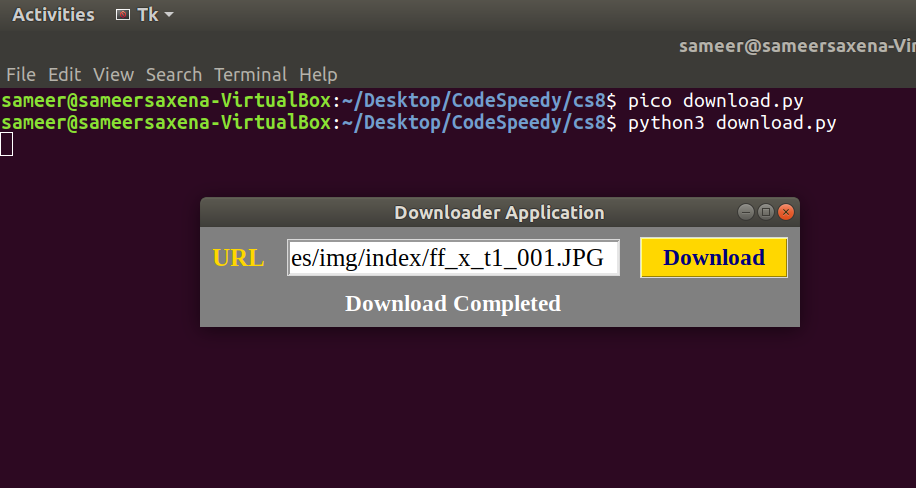
File has been successfully downloaded:
Directory Afterwards:

Preview of Downloaded file:

To learn more about the Tkinter and Requests module of Python you can refer to their documentation. So, I hope this tutorial was fruitful to you. Thank you, ‘Keep Learning Keep Coding’.
Leave a Reply